Get your Canvas courses into Canvas Pilot.

Install the read-only connector, keep one signed-in Canvas tab open, then press Pair & sync. No school password or connection code is entered into Canvas Pilot.

1Use one browser profileCanvas Pilot, Canvas, and the connector must be in the same Chrome or Edge profile.
2Know your Canvas websiteOpen your school’s normal instructure.com page and sign in there.
3Keep both tabs openLeave Canvas and Canvas Pilot open until the upload says it finished.

The normal setup is three steps.

Most people should use this path. The longer manual section is kept below for first-time installation during review and future troubleshooting.

STEP 2

Open Canvas

Sign in to your school’s Canvas site in this same browser profile and leave a regular Canvas page open.

STEP 3

Pair & sync

Return to Canvas Pilot and press the button. Pairing, collection, and the private cloud upload happen together.

✓
You are finished when Canvas Pilot shows a completed sync time.

Your saved coursework can then be opened from another computer or phone, and the MCP can read the same private snapshot while this computer is off.
Manual installation and first-sync backupUse these instructions while the Chrome Web Store review is pending.Use this only if the Store install or automatic connection needs troubleshooting.
1

Download and extract the connector.

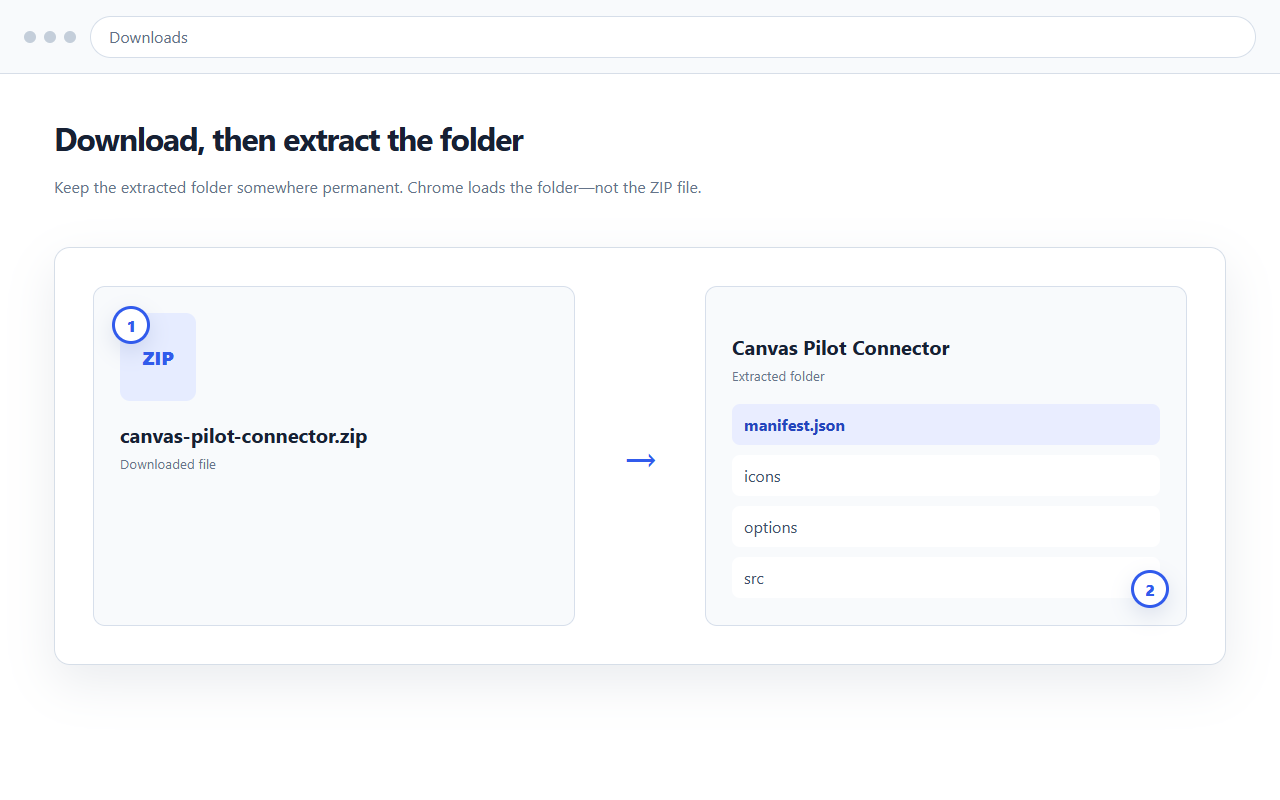
  1. Choose Download connector above.
  2. Open the downloaded ZIP and choose Extract all.
  3. Keep the extracted folder somewhere permanent. Do not select the ZIP itself later.
Example showing the Canvas Pilot connector ZIP being extracted into a permanent folder
Select the extracted folder—not the ZIP file—when Chrome asks for the extension folder.
2

Load the extracted folder in Chrome or Edge.

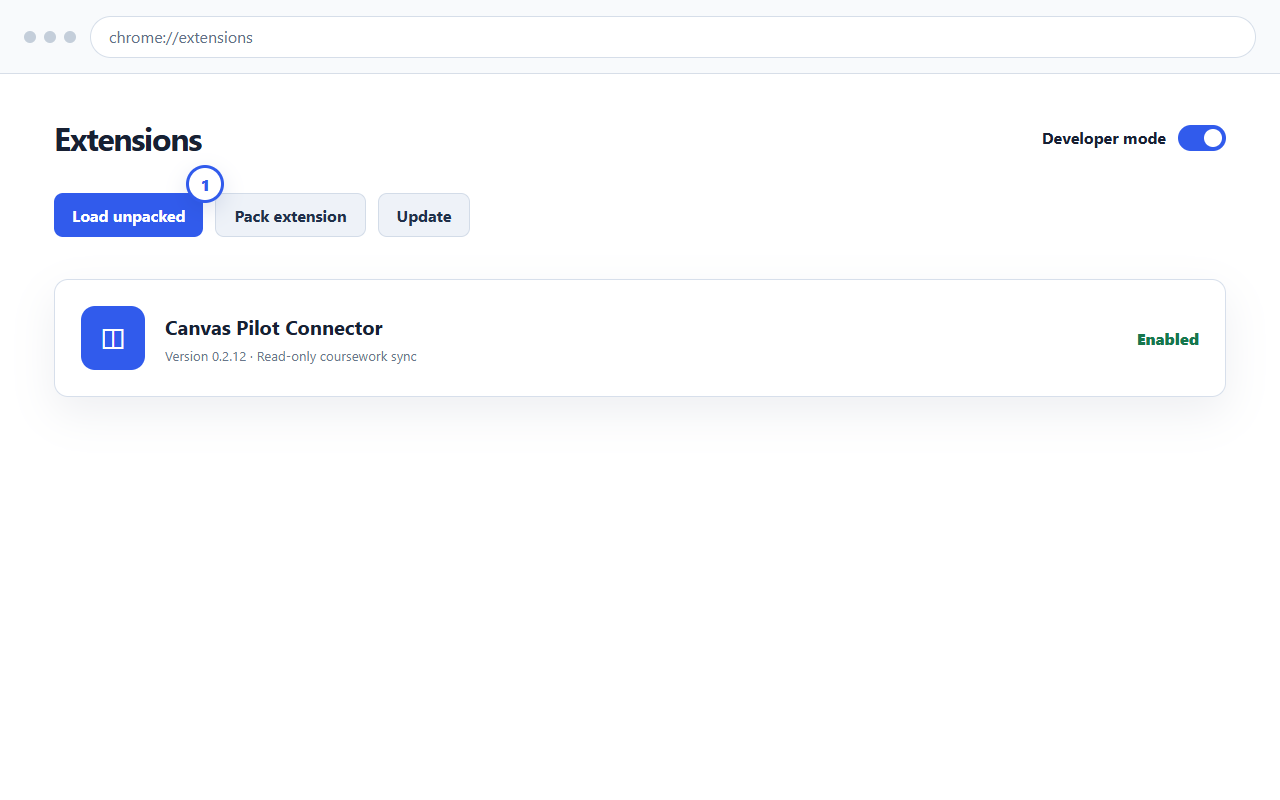
  1. Open chrome://extensions or edge://extensions.
  2. Turn on Developer mode.
  3. Choose Load unpacked.
  4. Select the extracted folder containing manifest.json.
Example Chrome extensions screen with Developer mode and Load unpacked highlighted
Developer mode and Load unpacked are temporary manual-install controls; ordinary Store installs will not need them.
3

Open Canvas, then pair from Canvas Pilot.

  1. Open your school’s Canvas site and sign in normally.
  2. Return to Canvas Pilot in the same browser profile.
  3. Refresh both tabs if they were open before installation.
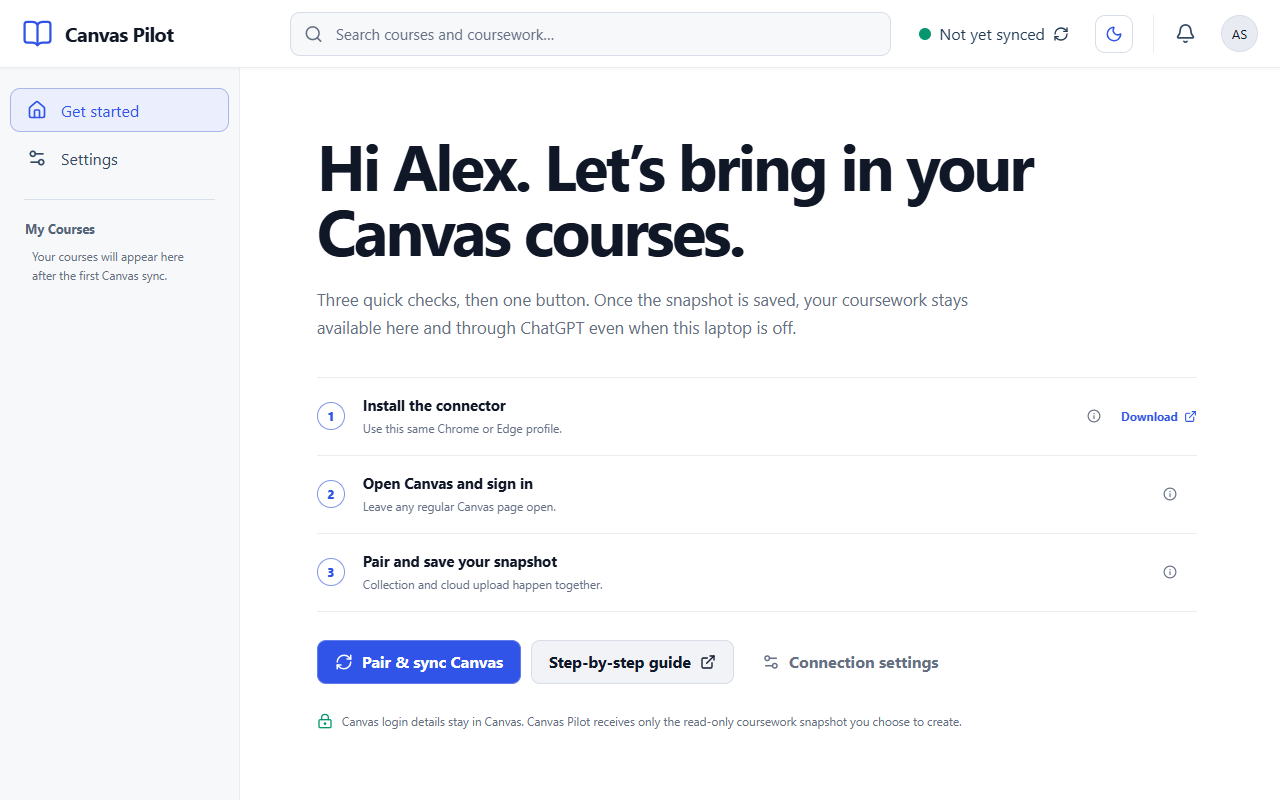
  4. Choose Pair & sync Canvas and wait for completion.
Canvas Pilot first-sync screen with the connector checklist and Pair and sync Canvas button
The small information buttons explain each requirement without sending you to another setup page.

If the button does not connect.

Try these in order. They solve the most common profile, tab, and update problems without using access codes.

Canvas Pilot says the connector is not detected

Confirm the connector is enabled at chrome://extensions, then refresh both Canvas Pilot and Canvas. Make sure both tabs use the same Chrome profile as the installed connector.

Canvas is open, but collection does not begin

Open a normal page on your school’s HTTPS instructure.com site—not a login provider, embedded page, or ChatGPT browser—and confirm you are signed in.

The connector was updated or reinstalled

Refresh every open Canvas Pilot and Canvas tab. If both unpacked and Store copies exist, disable the older copy so only one connector answers the website.

The upload started but no coursework appears

Keep Canvas and Canvas Pilot open until the sync finishes. Then check Settings → Connections for the last sync time. If an error remains, use Help & feedback to report it.

What the connector can—and cannot—do